
Discovering a tiny dot on your brand-new monitor can be frustrating. But before you panic, it’s essential to understand whether you’re dealing with a dead pixel or a stuck pixel—because the difference determines whether you can fix it or need to pursue a warranty claim.
After helping many users diagnose and resolve pixel defects through our testing tools, we’ve created this comprehensive guide to help you identify the type of pixel issue you’re facing, understand your repair options, and know when to seek a replacement. The good news: stuck pixels can often be fixed with the right techniques, while dead pixels typically require manufacturer intervention.
TL;DR – quick answer
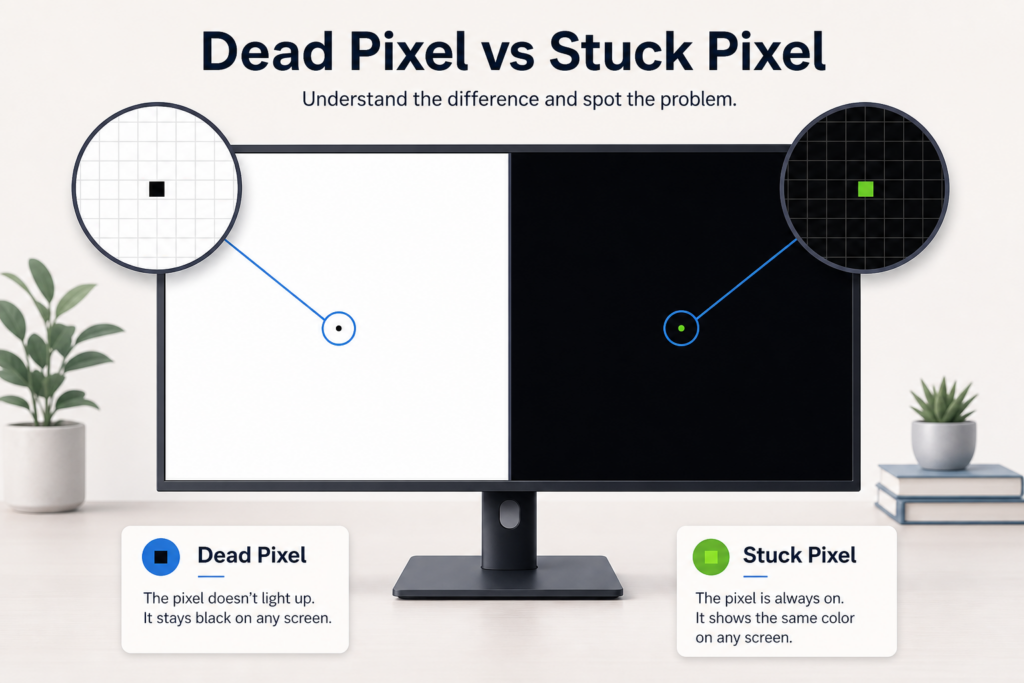
- Dead pixel = always black on every background (white, black, red, green, blue). It means the pixel gets no power and cannot be fixed. The only realistic options are return or warranty replacement.
- Stuck pixel = tiny bright colored dot (red, green, blue, white, cyan, magenta, yellow), especially visible on a black screen. It still receives power and can sometimes be fixed with rapid color-cycling tools.
- Quick test:
- Show a white screen → black dot = likely dead pixel
- Show a black screen → bright colored dot = stuck pixel
- Cycle red / green / blue → dead pixel stays black; stuck pixel keeps its color
- What to do:
- If it’s dead and you’re within 30 days → return the monitor if possible
- If it’s stuck → run a stuck-pixel fix tool for 20–30 minutes; repeat over 1–2 days
- Always document defects (photos, locations, count) if you plan a warranty claim
This article focuses on pixel defects. If you also want to understand when to use white, black, red, blue and other colors, see our screen colors guide.
Table of Contents
What is the difference between dead pixel and stuck pixel?
The terms “dead pixel” and “stuck pixel” are often used interchangeably, but they describe fundamentally different defects with different causes, appearances, and—most importantly—different repair possibilities.
What is a dead pixel?
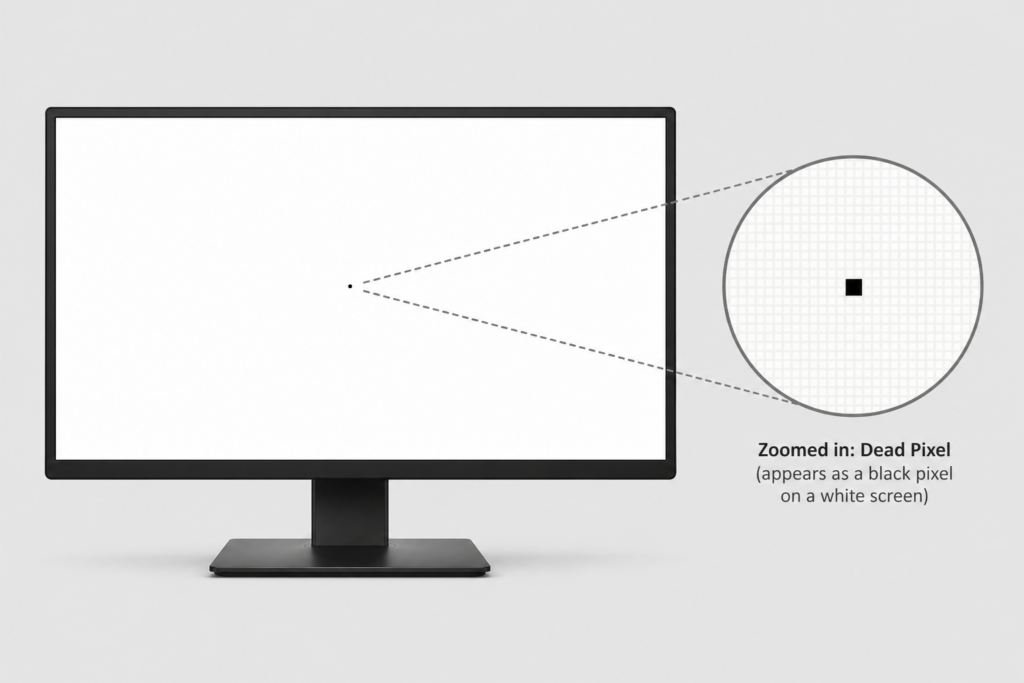
A dead pixel is essentially a pixel that has completely stopped working. Think of it as a light bulb that has burned out entirely. All three sub-pixels—red, green, and blue—are stuck in the ‘off’ position, receiving no electrical charge whatsoever. The transistor controlling that pixel has failed and cannot power any of the color components.
On your screen, a dead pixel appears as a tiny black dot that remains black regardless of what color the display shows. It’s most noticeable against bright backgrounds like white or light-colored screens. When you display pure white, red, green, or blue, the dead pixel stays stubbornly black because none of its sub-pixels can activate.
Dead pixels result from manufacturing defects or physical damage to the display panel. The transistor that supplies power to the pixel has permanently failed, making dead pixels nearly impossible to repair through software methods. Once a pixel is truly dead, only hardware replacement can resolve the issue.
What is a stuck pixel?
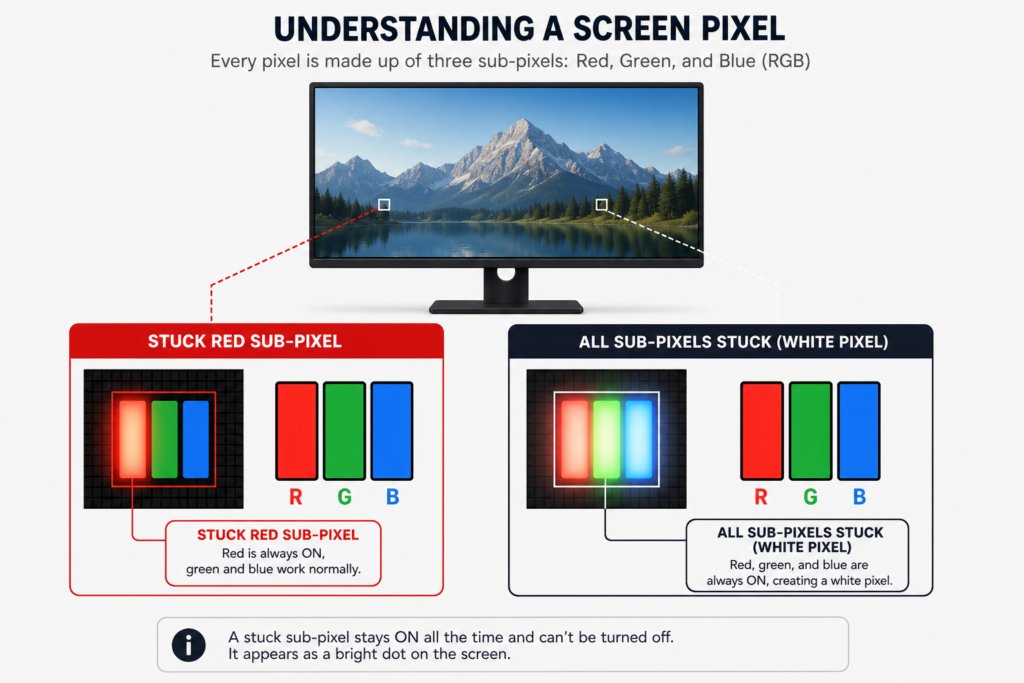
A stuck pixel behaves very differently from a dead pixel. Instead of being completely off, a stuck pixel is like a light bulb stuck on one specific setting. One or more of its sub-pixels remain permanently ‘on,’ but they cannot change color or respond to display signals properly.
You’ll see a stuck pixel as a bright colored dot—typically red, green, blue, white, cyan, magenta, or yellow—that stands out dramatically against darker backgrounds. The specific color depends on which sub-pixel combination is stuck in the ‘on’ position. For example, if only the red sub-pixel is stuck on, you’ll see a bright red dot. If both red and blue are stuck, you’ll see magenta.
Unlike dead pixels, stuck pixels are still receiving electrical power. The sub-pixels are active but frozen in one state, unable to respond correctly to the signals telling them to change color. This happens when the liquid crystal material gets stuck in one position or when the transistor sends incomplete signals.
The crucial difference: stuck pixels can sometimes be repaired through software techniques or gentle physical manipulation because the pixel is still electrically functional. Dead pixels, lacking any power, cannot be revived through these methods.
Dead pixel or stuck pixel: Visual comparison
The fastest way to distinguish between dead and stuck pixels is through systematic color testing:
Dead pixel appearance:
- Always appears black on every color background
- Most visible on white, bright, or light-colored screens
- Remains completely dark on red, green, blue, yellow, or any other color
- Looks like a tiny black dot or speck
Stuck pixel appearance:
- Shows a constant bright color (red, green, blue, white, cyan, magenta, yellow)
- Most visible on black or dark backgrounds where it glows brightly
- The color never changes regardless of what’s displayed around it
- May occasionally flicker but maintains the same color
Quick identification test:
- Display a pure white screen—dead pixels appear as black dots
- Display a pure black screen—stuck pixels appear as bright colored dots
- Cycle through red, green, and blue screens—dead pixels stay black, stuck pixels remain their constant color
How to identify dead pixels vs stuck pixels
Proper identification requires systematic testing with solid color screens. This methodical approach ensures you accurately diagnose the issue before attempting repairs or pursuing warranty claims.
Can anyone tell me if this is a dead or stuck pixel?
This question appears constantly on Reddit and tech forums, and the answer is simpler than most people think. You can identify the pixel type yourself in less than a minute using a straightforward visual test.
Here’s the 30-second identification method:
Step 1: Display a pure black screen on your monitor. Look carefully at the area where you noticed the defect.
- If you see a bright colored dot (red, green, blue, white, or any other color), it’s a stuck pixel
- If you see nothing unusual or the dot disappears, move to Step 2
Step 2: Display a pure white screen.
- If you see a black dot that wasn’t visible on the black screen, it’s a dead pixel
- If the dot you saw on black disappeared on white, it’s definitely a stuck pixel
Step 3: Cycle through pure red, green, and blue screens.
- Dead pixels remain black on all three colors
- Stuck pixels maintain their constant color regardless of the background
The key distinction: dead pixels are always black because they receive no power. Stuck pixels are always colored because one or more sub-pixels are stuck in the ‘on’ position.
If you’re still uncertain after this test, take photos of your screen displaying black and white backgrounds. The contrast will make the defect type obvious when you examine the images.
Testing for dead pixels
Dead pixel testing requires displaying bright, uniform colors that make black defects immediately visible. Follow this comprehensive testing sequence:
- Clean your screen thoroughly with a microfiber cloth. Dust specks and smudges can mimic pixel defects, leading to false diagnoses. Make sure the screen is completely clean and dry before testing.
- Display a pure white screen at maximum brightness. This provides the highest contrast for spotting dead pixels. Systematically scan the entire display, dividing it mentally into sections (top-left, top-right, bottom-left, bottom-right, center).
- Look for tiny black dots that stand out against the white background. Dead pixels appear as perfect black squares or rectangles. Mark their locations mentally or with a photo for documentation.
- Switch to a grey screen at 50% brightness. Sometimes dead pixels are easier to spot against medium grey than pure white, especially if your backlight has slight uniformity issues.
- Cycle through bright primary colors—red, green, and blue at full saturation. Dead pixels remain black on all three. This confirms the diagnosis and rules out stuck pixels.
- View from multiple angles. Some pixel defects appear more prominent when viewed from the side or above/below center position. Check all viewing angles to ensure you haven’t missed any defects.
Use our dead pixel checker tool at /check-for-dead-pixel/ for automated testing that cycles through optimal colors and provides guided instructions throughout the process.
Testing for stuck pixels
Stuck pixel detection requires the opposite approach—dark backgrounds that make bright colored defects stand out prominently:
- Start with a pure black screen at your normal brightness level. This provides maximum contrast for spotting stuck pixels, which glow brightly against darkness.
- Scan the entire display systematically. Stuck pixels appear as bright red, green, blue, white, cyan, magenta, or yellow dots. They’re usually easier to spot than dead pixels because they emit light against the black background.
- Display red, green, and blue screens sequentially. This helps identify which specific sub-pixel is stuck:
- If the bright dot disappears on red but appears on green and blue, the green or blue sub-pixel is stuck
- If it remains visible on all three colors, multiple sub-pixels are stuck (appearing white if all three are on)
- If it appears yellow, the red and green sub-pixels are stuck; cyan means green and blue; magenta means red and blue
- Note the exact location and color. This information is crucial for targeted repair attempts and warranty documentation.
- Check if the pixel ever changes. Some stuck pixels flicker occasionally or shift slightly in brightness. Note any variation in behavior.
The color of a stuck pixel tells you which sub-pixel components are malfunctioning, which can be useful information when attempting repair techniques or explaining the issue to manufacturer support.
Dead pixel vs dead subpixel
There’s an important technical distinction between a completely dead pixel and a dead sub-pixel that many users overlook.
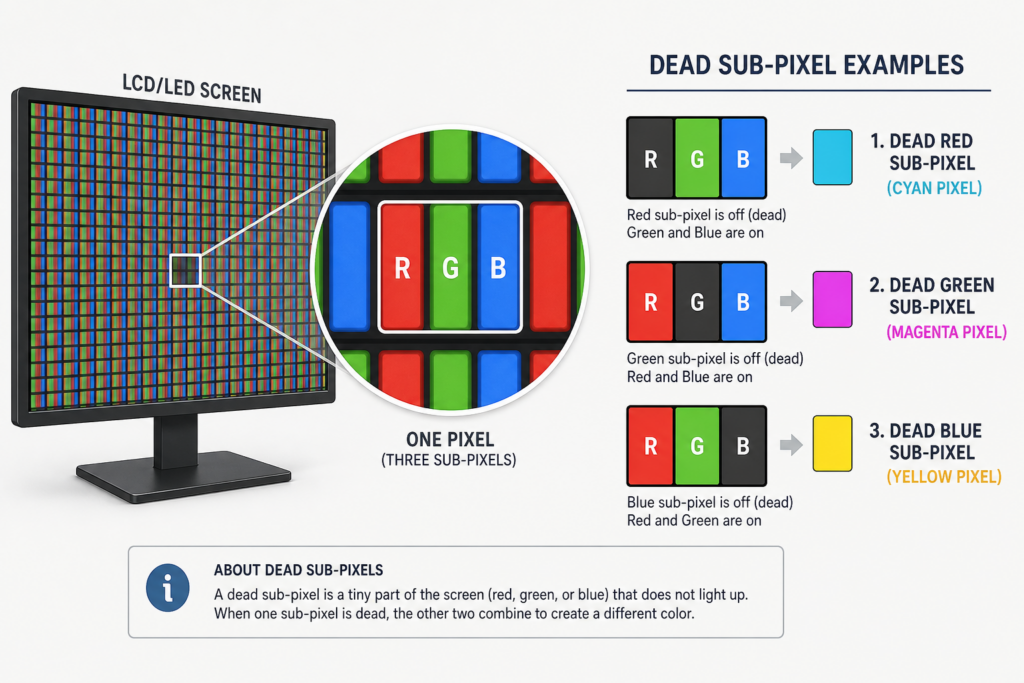
A dead pixel means all three sub-pixels (red, green, and blue) are non-functional. The entire pixel receives no power and appears completely black on all colors. This represents a complete transistor failure affecting the entire pixel unit.
A dead sub-pixel means only one of the three color components is non-functional while the other two still work. This creates different visual effects:
- Dead red sub-pixel: The pixel can only display combinations of green and blue (cyan), appearing cyan-tinted on white backgrounds
- Dead green sub-pixel: The pixel can only display combinations of red and blue (magenta), appearing magenta-tinted on white
- Dead blue sub-pixel: The pixel can only display combinations of red and green (yellow), appearing yellow-tinted on white
Dead sub-pixels are less noticeable than completely dead pixels because they still emit some light. On white backgrounds, they appear as subtle color tints rather than black dots. On colored backgrounds, they may be invisible if the displayed color doesn’t require the dead sub-pixel.
To test for dead sub-pixels specifically, display pure red, green, and blue screens:
- On a red screen, dead red sub-pixels appear black while functional pixels glow red
- On a green screen, dead green sub-pixels appear black
- On a blue screen, dead blue sub-pixels appear black
Some manufacturers distinguish between dead pixels and dead sub-pixels in their warranty policies, requiring different numbers of each type before authorizing replacement.
Can dead pixels or stuck pixels be fixed?
The fixability of pixel defects depends entirely on the type. This distinction is crucial because attempting the wrong repair method wastes time and may even cause additional damage.
Can you fix a dead pixel?
The short answer: No, dead pixels generally cannot be fixed through software or manual techniques.
Since dead pixels result from complete transistor failure with no electrical charge reaching the pixel, no amount of software manipulation can restore function. The hardware component responsible for powering the pixel has permanently failed. It’s like trying to turn on a light bulb when the electrical wiring to that socket has been cut—flipping the switch repeatedly won’t help.
Some people report temporary success with aggressive physical pressure techniques, but these methods carry significant risk. Applying too much pressure can damage surrounding pixels or create larger dead zones. Even when physical pressure appears to work, the fix is usually temporary, with the dead pixel returning within days or weeks.
Professional repair requires replacing the entire LCD panel, which typically costs more than buying a new monitor. For this reason, manufacturers rarely offer dead pixel repairs—they replace the entire unit if the defect qualifies under warranty.
Your options with dead pixels:
- Check your warranty policy and pursue replacement if you meet the minimum threshold
- Return the monitor within the retail return period (usually 30 days)
- Learn to ignore it if it’s in a non-critical screen area
- Accept it as a limitation of current LCD technology
How to fix a stuck pixel
Unlike dead pixels, stuck pixels can often be repaired because they’re still receiving power—they just need to be “unstuck” from their frozen state. Success rates vary from 20% to 60% depending on the severity and duration of the stuck pixel.
Method 1: Rapid color cycling (Most effective)
This software-based technique rapidly flashes different colors at the stuck pixel location, exercising the sub-pixel and potentially freeing it from its stuck state:
- Use our stuck pixel fix tool at /how-to-fix-a-stuck-pixel/ or similar software
- Position the flashing color area directly over the stuck pixel
- Let it run for 20-30 minutes minimum; some users report success after several hours
- The rapid color changes (switching every few milliseconds) bombard the stuck sub-pixel with electrical signals
- This can sometimes reset the liquid crystal or transistor back to normal functioning
The success rate improves with early intervention—fix attempts within days of the pixel getting stuck work better than attempts weeks or months later.
Method 2: Gentle pressure technique
This physical method attempts to dislodge the stuck liquid crystal material:
- Turn off your monitor and wait for it to cool completely
- Get a soft, damp microfiber cloth (not wet, just slightly damp)
- Locate the exact position of the stuck pixel
- Apply gentle, steady pressure directly on the stuck pixel location through the cloth
- While maintaining pressure, turn the monitor back on
- Keep pressing for about 10 seconds after the display powers up
- Slowly release the pressure while watching for changes
Warning: This technique carries risk. Too much pressure can create dead pixels or damage the LCD panel. Only attempt this with extreme care, and stop immediately if you see any spreading of the defect.
Method 3: Combined approach
For stubborn stuck pixels, combining both methods sometimes works:
- Run color cycling software for 30 minutes to warm up the pixel
- Turn off the monitor and apply gentle pressure
- Turn on while pressing, then run color cycling again
- Repeat this cycle 2-3 times over a day
Realistic expectations:
- Recent stuck pixels (days old): 40-60% success rate
- Older stuck pixels (weeks to months old): 20-30% success rate
- Very old stuck pixels (several months+): Under 10% success rate
- Some stuck pixels are permanent hardware defects that cannot be fixed
If a stuck pixel doesn’t respond after several repair attempts over 1-2 days, it’s likely permanent and requires warranty replacement.
Dead pixel stuck pixel screen fix tools
Dead Pixel Checker
Our comprehensive testing tool guides you through the optimal color sequence for detecting all types of pixel defects. Features include:
- Automated color cycling (white, black, red, green, blue, grey)
- Fullscreen mode for complete coverage
- Instructions at each step
- Works on all devices and browsers
- No installation or download required
Individual color screens for manual testing:
- White screen – Primary tool for spotting dead pixels as black dots
- Black screen – Essential for stuck pixel detection
- Grey screen – Reveals subtle defects and backlight uniformity issues
- Red screen – Tests red sub-pixels specifically
- Green screen – Tests green sub-pixels specifically
- Blue screen – Tests blue sub-pixels specifically
Testing strategy:
Start with white and black screens for quick detection, then cycle through RGB primaries to identify which specific sub-pixels are affected. This complete testing sequence takes less than 5 minutes but reveals defects that partial testing might miss.
Stuck Pixel Fix
Our dedicated repair tool provides targeted pixel exercising with:
- Rapid color flashing optimized for stuck pixel repair
- Adjustable flash rate and duration
- Fullscreen and targeted area modes
- Instructions for best results
- Safe for all display types
Most repair tools work on the same principle: rapid color cycling to exercise the stuck pixel. The key differences are user interface, customization options, and convenience. Our tools integrate directly with your browser and require no downloads or installations.
Software-based repair tools
PixelHealer (Windows)
Downloadable application with:
- Customizable flash patterns and colors
- Multiple stuck pixel targeting
- Scheduled repair sessions
- System tray operation for background fixing
UDPixel (Windows)
Feature-rich Windows program offering:
- Flash duration control
- Color selection for targeted sub-pixel repair
- Multiple simultaneous repair windows
- Free for personal use
Manual color cycling:
If you prefer manual control, cycle through our color screens rapidly:
- Open /red-screen/, /green-screen/, /blue-screen/ in separate tabs
- Switch between them every 1-2 seconds for 10-15 minutes
- Focus the flashing on the stuck pixel area
- This manual method gives you complete control over the repair process
Success factors:
- Earlier intervention produces better results
- Longer repair sessions (30+ minutes) improve success rates
- Multiple repair attempts over several days may succeed when single attempts fail
- Some stuck pixels respond better to slower flash rates, others to faster—experiment if initial attempts fail
Are dead pixels bad?
Understanding the severity and progression of pixel defects helps you make informed decisions about whether to pursue replacement or live with the issue.
Is a dead or stuck pixel common on monitors?
The prevalence of pixel defects varies significantly based on panel quality, manufacturing processes, and display technology. Based on user reports across Reddit and tech forums, approximately 15-20% of new monitors have at least one dead or stuck pixel.
However, these statistics need context. Many users never notice their dead or stuck pixels unless they specifically test for them. A single dead pixel in a non-critical area of a 4K display (with over 8 million pixels total) may go completely undetected during normal use.
IPS panels appear more susceptible to stuck pixels than other panel types. Multiple display technicians report that nearly every IPS panel shows at least one imperfect pixel under close examination, though many are dead sub-pixels rather than completely dead pixels and may not be noticeable during regular use.
Higher-end displays from premium manufacturers generally have lower defect rates due to better quality control. Budget monitors and laptops show higher incidence of pixel defects, with some users reporting multiple defective pixels even on brand-new units.
The good news: modern manufacturing has significantly reduced dead pixel rates compared to monitors from 10-15 years ago. Today’s displays use more advanced production techniques that minimize defects, though completely eliminating them remains technologically challenging at current price points.
User experiences vary widely—some people purchase dozens of monitors over years without encountering a single defective pixel, while others seem to consistently receive units with multiple defects. This suggests quality control inconsistencies even within the same brand and model line.
Is ONE dead pixel a huge deal?
A dead pixel is an annoyance rather than a functional problem in most cases. It doesn’t indicate that your entire monitor is failing or that additional pixels will die soon. The screen continues functioning normally in every other respect.
Impact depends heavily on location and your use case:
Minimal impact scenarios:
- A single dead pixel in the corner or edge of the screen
- Dead pixels in areas typically covered by taskbars, window borders, or application interfaces
- For general web browsing, office work, or casual gaming where you don’t focus on a fixed point
Noticeable impact scenarios:
- Dead pixels near the center of the screen where you focus most
- Multiple dead pixels clustered together
- For photo editing, design work, or tasks requiring precise visual accuracy
- For content creation where every pixel matters
Most manufacturer warranties acknowledge this reality by setting minimum thresholds before replacement. A single dead pixel, while annoying, doesn’t significantly impair the display’s utility for most users. Five dead pixels clustered in the center, however, creates a distracting dark spot that interferes with normal use.
Will dead pixels get worse over time?
Dead pixels themselves don’t spread or multiply in the way many people fear. A dead pixel is a discrete hardware failure affecting one specific transistor location. That failure doesn’t inherently cause neighboring pixels to fail.
However, the underlying conditions that caused one pixel to fail may eventually affect others:
Dead pixels typically remain stable when:
- The failure resulted from a manufacturing defect (most common cause)
- No additional physical stress or damage occurs
- The display operates within normal temperature and usage parameters
New dead pixels may develop when:
- The display experiences physical trauma (drops, impacts, pressure)
- Extreme temperature fluctuations stress the panel
- Manufacturing defects progressively manifest over the first few months
- The display has inherent quality control issues affecting multiple areas
Most users with a single dead pixel report no additional failures even years later. The pixel that died remains the only defective one. If you notice multiple new dead pixels appearing over weeks or months, this suggests broader panel quality issues or damage that warrants warranty replacement.
Can dead pixels spread?
Dead pixels cannot literally spread from one location to another because they result from individual transistor failures, not a contagious condition. Each pixel has its own independent transistor and circuitry.
However, users sometimes report what appears to be spreading when:
Multiple nearby pixels were already defective but unnoticed: Testing more carefully reveals these pixels were always dead, just not visible until you looked closely
Physical damage creates a cluster: Impact or pressure on one area damages multiple adjacent pixels simultaneously, appearing as spreading when actually multiple pixels failed at once
Manufacturing defects manifest progressively: Some panels have inherent weaknesses in specific zones where multiple pixels fail over the first few months as stress reveals manufacturing flaws
Stuck pixels get confused with dead pixels: Stuck pixels occasionally can affect neighbors due to electrical interference, though this is rare
If you observe genuinely new dead pixels appearing regularly (weekly or monthly), your display likely has serious quality issues requiring replacement. Normal displays with one or two dead pixels should remain stable indefinitely without new defects appearing.
Dead pixels vs stuck pixels: Warranty and replacement
Understanding manufacturer policies helps you determine whether your pixel defect qualifies for warranty replacement and how to maximize your chances of successful claims.
Manufacturer pixel policies
Most major display manufacturers maintain specific pixel defect policies defining how many defects qualify for warranty replacement. These policies distinguish between dead pixels, stuck pixels, and bright pixels (stuck pixels that appear white).
Common manufacturer thresholds:
Dell:
- Premium Panel Exchange (UltraSharp models): 1 bright pixel qualifies for replacement
- Standard warranty: 6+ dead pixels required for replacement
- Bright pixels weighted more heavily than dark dead pixels
ASUS:
- 5+ dead pixels required before warranty replacement
- Single dead pixels not covered under standard warranty
- Some premium models have stricter policies
MSI:
- 5+ dead pixels typically required
- Some users report successful returns with 3+ pixels depending on region
- Policy varies by model tier and market
AOC:
- More lenient policies on some models
- 1 bright or dead pixel may qualify for replacement depending on warranty tier
- Check specific model documentation
LG:
- Generally requires 7+ dead pixels for replacement
- Bright pixels may have lower threshold
- Different policies for consumer vs professional displays
BenQ:
- Pixel Perfect models guarantee zero dead pixels
- Standard models typically require 3-5 dead pixels
- Premium product lines have stricter policies
Important distinction: Many manufacturers treat “bright pixels” (stuck pixels appearing white) more seriously than dark dead pixels. A single bright pixel in the center of the screen often qualifies for replacement, while 5+ dead pixels may be required if they’re dark.
Location also matters—some manufacturers use zone systems where defects in the central viewing area count more heavily than edge defects.
How to document pixel defects for warranty claims
Proper documentation significantly improves your chances of successful warranty claims, especially when dealing with borderline cases near the replacement threshold.
Photography tips:
- Use a DSLR or smartphone camera with manual focus capability
- Display a solid white screen for dead pixel documentation
- Display a solid black screen for stuck pixel documentation
- Take photos from multiple angles showing the defect clearly
- Include photos showing the pixel’s exact screen location
- Capture close-ups and full-screen context shots
Essential documentation to gather:
- Model number and serial number of the display
- Purchase date and proof of purchase (receipt or invoice)
- Exact count of defective pixels
- Location map showing where each defect appears
- Color of stuck pixels (red, green, blue, white, etc.)
- Screenshots won’t work—you need actual photos of the physical screen
Creating a location map:
- Take a photo of the full screen displaying a grid or ruler
- Measure pixel positions from the top-left corner
- Note coordinates (e.g., “Dead pixel at approximately 1200px from left, 600px from top”)
- Use our dead pixel checker tool and screenshot the tested areas
Written description should include:
- “I have [X] dead pixels and [Y] stuck pixels on my [model name]”
- Location descriptions: “One dead pixel in center area, two in upper right quadrant”
- When you first noticed the defects
- Whether the defects appeared on first use or developed later
Some manufacturers require you to run their proprietary diagnostic tools or provide specific test results. Check your brand’s warranty documentation for exact requirements before submitting claims.
When to return a monitor with pixel defects
Timing is crucial for pixel defect returns and replacements. Different return windows and policies apply depending on where and when you purchased the display.
Retail return period (First 30 days):
This is your best opportunity for replacement regardless of manufacturer warranty policies. Most retailers (Amazon, Best Buy, Newegg, etc.) allow returns within 14-30 days for any reason, including a single dead pixel.
Strategy:
- Test thoroughly within the first week of receiving the display
- Use our comprehensive dead pixel checker tool immediately after unboxing
- Return promptly if you find any defects—don’t wait until day 29
- Retail returns are easier than manufacturer warranty claims
Manufacturer warranty period:
After the retail return window closes, you’re subject to the manufacturer’s pixel policy thresholds. Warranty periods typically range from 1-3 years depending on brand and model.
Best practices:
- Document defects as soon as you notice them, even if they don’t meet the threshold yet
- If new pixels die and you reach the threshold, submit your claim immediately
- Warranties typically cover defects that develop during normal use
- Manufacturing defects that appear within the first 6 months are strongest warranty cases
Dead pixels vs stuck pixels for warranty:
Manufacturers generally treat these differently:
- Dead pixels: Usually need to meet numerical threshold (3-7 pixels)
- Bright stuck pixels: Often qualify for replacement with just 1 pixel, especially if centrally located
- Dark stuck pixels: May be treated similarly to dead pixels
If you have stuck pixels, attempt repair techniques first. If they convert to dead pixels during repair attempts, you may strengthen your warranty case.
Special considerations:
- Premium product lines often have better pixel policies—check if your model qualifies
- Some retailers offer extended warranty or protection plans with zero dead pixel guarantees
- Business/professional displays typically have stricter quality standards than consumer models
- International purchases may have different warranty terms than domestic
The most important rule: Test immediately and return quickly if you’re within the retail return window. Don’t rely on manufacturer warranties if you can avoid it—retail returns are simpler and don’t depend on meeting pixel defect thresholds.
Quick reference: Dead pixel vs stuck pixel
This quick reference section provides at-a-glance information for rapid identification and decision-making.
Visual identification chart
| Feature | Dead Pixel | Stuck Pixel |
|---|---|---|
| Appearance on white | Black dot | Colored dot (may be faint) |
| Appearance on black | Invisible or black | Bright colored dot |
| Appearance on red | Black dot | Varies by stuck color |
| Appearance on green | Black dot | Varies by stuck color |
| Appearance on blue | Black dot | Varies by stuck color |
| Color | Always black | Red, green, blue, white, cyan, magenta, or yellow |
| Cause | No power to pixel | Sub-pixel stuck in ‘on’ position |
| Fixability | Not fixable | Often fixable (20-60% success rate) |
| Warranty coverage | Usually requires 3-7+ pixels | Often covered with 1 pixel if bright |
Quick decision flowchart:
- Can you see the defect on a black screen?
- YES → Bright colored dot = Stuck pixel → Try repair tools
- NO → Go to step 2
- Can you see the defect on a white screen?
- YES → Black dot = Dead pixel → Check warranty
- NO → No defect or very subtle stuck pixel
- Does it change color on different backgrounds?
- YES → Likely a stuck sub-pixel or partial defect
- NO → Confirmed dead or stuck pixel
What to do next
If you have a dead pixel:
- Count the total number of dead pixels using our checker tool
- Check your manufacturer’s warranty pixel policy
- If within 30 days of purchase, return to retailer immediately
- If past retail return period and below warranty threshold, decide whether to live with it or wait for more pixels to fail
- Document the defect with photos for future warranty claims
If you have a stuck pixel:
- Try our stuck pixel fix tool at /how-to-fix-a-stuck-pixel/ for 30+ minutes
- If unsuccessful, try the gentle pressure technique carefully
- Repeat repair attempts over 1-2 days
- If still stuck after multiple attempts, treat it like a dead pixel for warranty purposes
- Consider return/replacement if within retail return window
Prevention tips:
- Test new displays thoroughly within the first week
- Avoid physical pressure on the screen during cleaning or handling
- Keep displays within normal operating temperatures
- Use proper mounting and support to prevent panel flex
Regardless of which tool you choose, the underlying principle remains the same: rapidly exercise the stuck sub-pixel through color changes to potentially reset it to normal functioning. Our tools simply make this process easier and more convenient than manual methods.
Sources: Lenovo, Cevaton, Photography Life,